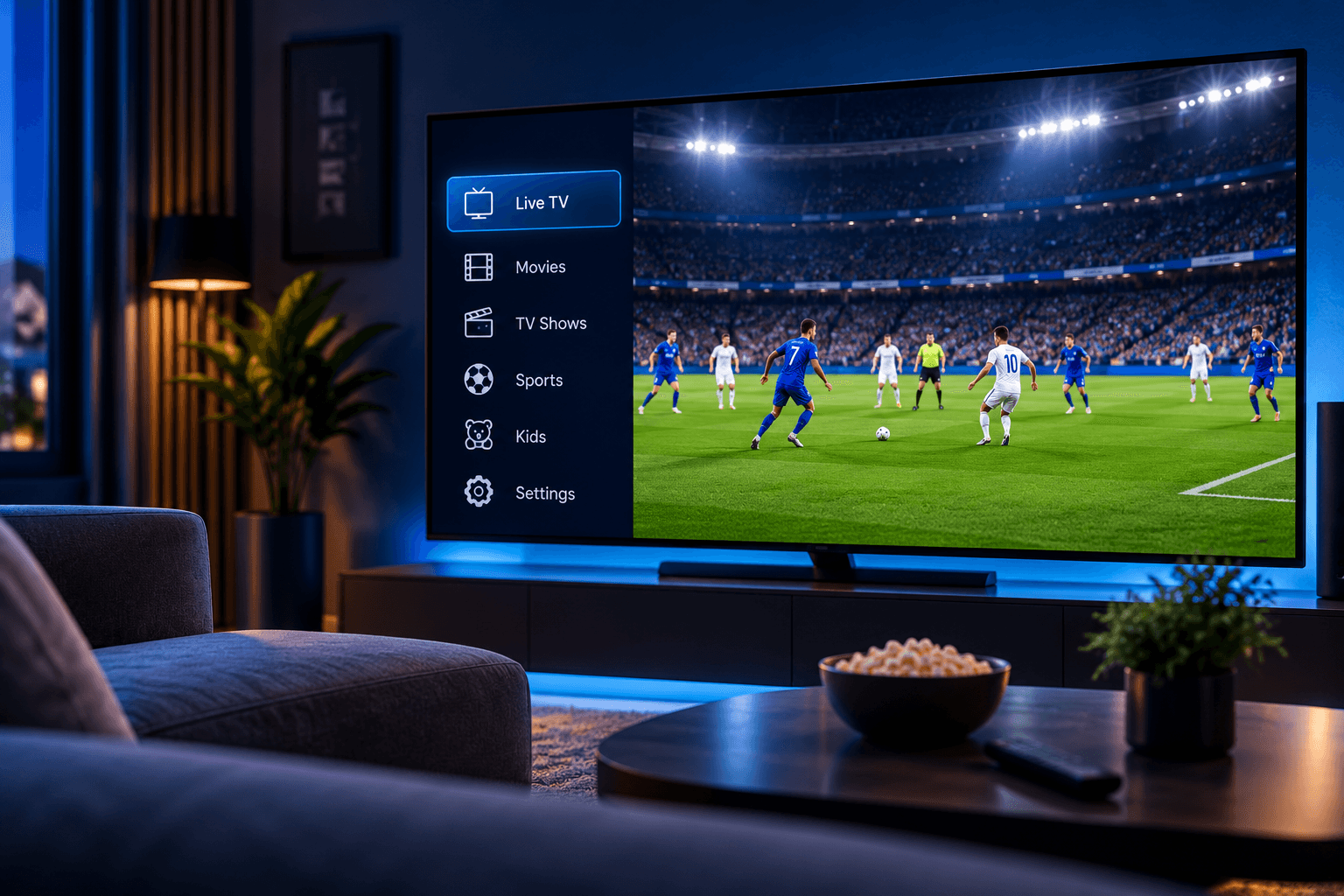
Best Practices for Streaming Apps on LG webOS TVs
A few habits that help keep your streaming experience smooth on LG's webOS platform.
LG's webOS platform is known for being fast and responsive, and a few simple habits help keep that experience consistent over time.
Keep webOS Updated
Check for system updates periodically under Settings, since these often include performance and compatibility improvements for installed apps.
Manage Installed Apps
- Remove apps you no longer use to keep your home screen organized
- Keep your streaming app updated through the LG Content Store
- Restart the TV occasionally to clear temporary performance issues
Check Your Network Connection
Under the Connection settings, confirm your TV has a strong, stable connection, especially if you're noticing inconsistent streaming quality.
New to LG setup? See our full guide on how to set up IPTV on LG Smart TV.Frequently Asked Questions
How often should I restart my LG TV?
There's no strict rule, but restarting periodically — especially if you notice slower performance — is a reasonable habit.
Does having many apps installed slow down my TV?
It can, particularly if storage becomes limited. Removing unused apps helps keep things running smoothly.
What if my streaming app looks outdated compared to before?
Check the LG Content Store for a pending update, since app updates are typically handled through the same store you installed from.
Final Thoughts
A few routine habits — updates, app management, and connection checks — go a long way toward keeping your LG webOS streaming experience consistently smooth.